


Compression instructions below

Go Ad-Free with ezyZip Pro!
Compress files of any size with no file size limits and no ads. ezyZip Pro includes a desktop Archive Creator app with password protection and multi-volume splitting.
Watch a 60-second walkthrough
How do I create TAR file?
Below are step by step instructions for creating TAR archives using ezyZip.
- Select files to archive To add files to your TAR archive, you have two options:
- Click "Select files to archive" to open the file chooser
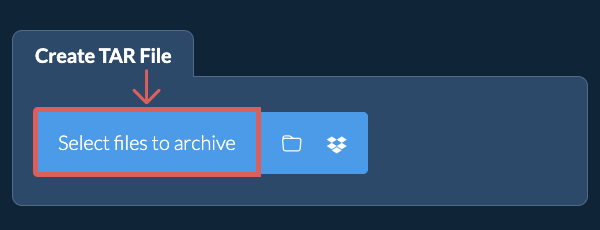
- Drag and drop files and folders directly onto ezyZip
Click "Select files to archive" to open the file chooser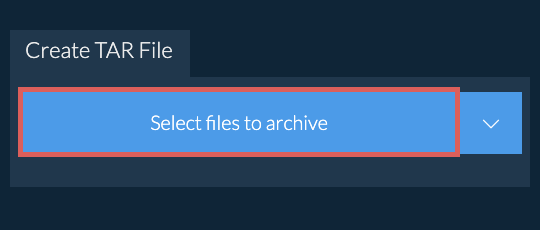
- (Optional) Set compression level(Optional) Set the desired compression level by clicking the down arrow next to "Create TAR File" button.
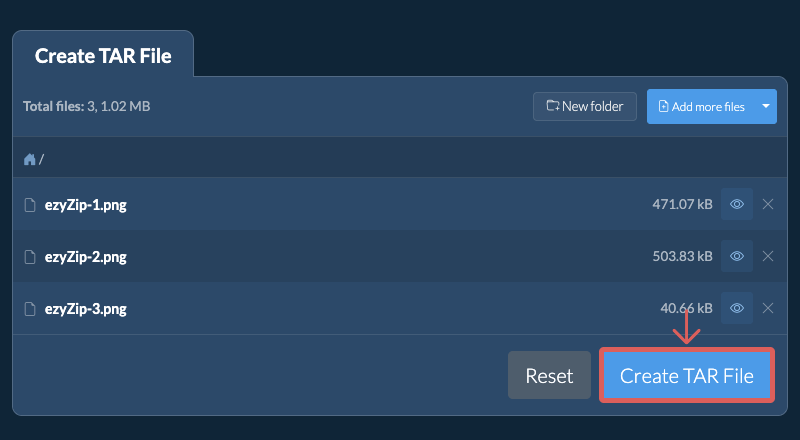
- Click Create TAR FileClick "Create TAR File". It will start compressing the files.
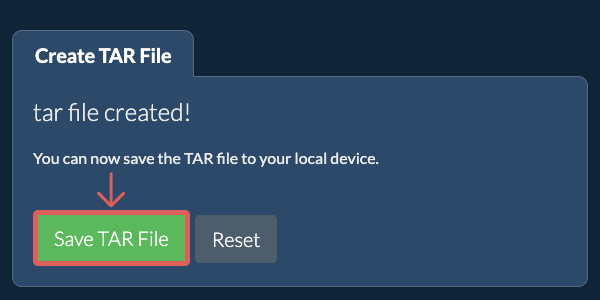
- Save your archiveClick "Save TAR File" to save the archive to selected destination folder.
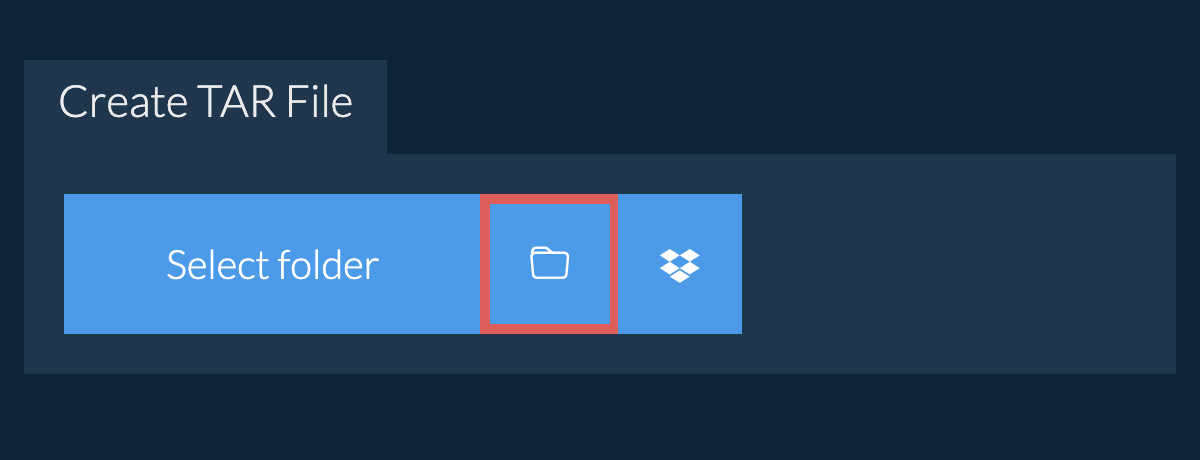
- Click the Dropbox iconClick on the Dropbox logo () in the file selector button.
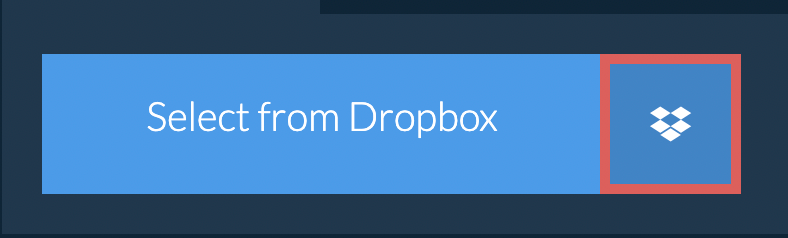
- Authorise and pick filesThe Dropbox file chooser will appear. You will need to authorise access to ezyZip the first time.
- Files appear in the listingOnce you have selected the file(s), they will appear in the listing. Follow the instructions above to compress the files.
- Save back to DropboxTo save the resulting TAR file to Dropbox, click on "Dropbox" dropdown under the "Save TAR File" button. This will require authorisation the first time you run it.
The file will be stored in /Apps/ezyZip folder.
Frequently asked questions
We are continuously updating the system, so ensure you are using the latest version of one of the popular browsers or their variants. (e.g. Chrome, Firefox, Safari, Opera).
Please let us know via the feedback form if you have any issues.
A TAR file (short for Tape Archive) is a widely-used archive format in Unix and Linux environments. Unlike other formats, TAR itself does not compress the files; instead, it simply bundles multiple files and directories into a single archive file. This makes it a useful tool for combining many files into one, preserving file system information such as directory structures, timestamps, and permissions.
Originally designed for tape backups, TAR files are now often used in conjunction with compression utilities like GZIP or BZIP2 to create compressed archives such as TAR.GZ or TAR.BZ2. The simplicity and flexibility of TAR make it an essential format for archiving and distributing software and data on Unix-based systems.
ezyZip processes files directly in your browser. Unlike most online tools, your files are not uploaded to our servers, which means faster processing and better privacy. Take a look at the feature comparison below and we think youll agree that ezyZip is the better choice for your file conversion needs.
| Feature | ezyZip | Other Online Tools |
|---|---|---|
| No Software Installation | Works Directly in Browser | Works Directly in Browser |
| Processing Location | Your Browser (No Upload) | Their Servers (Upload Required) |
| Privacy & Security | 100% Private (Files Never Leave Your Device) | Files Uploaded, Accessible by Others |
| Processing Speed | Fast (No Upload/Download Time) | Slow (Upload + Process + Download) |
| Registration Required | Never | Often Required for Large Files |
| Works Offline | Yes (After Page Load) | No |
| Supported Formats | 250+ Archive Formats | Limited Format Support |
| Cost | 100% Free | Free with Limitations / Paid Tiers |
| Established | Since 2009 (15+ Years) | Recent (May Disappear) |
Why client-side archiving is faster for large TAR files
When you create a TAR archive with ezyZip, the compression runs entirely in your browser using WebAssembly (WASM). Here is why our local engine outperforms server-based archivers:
- On-Demand Codec LoadingMultiple compression codecs — including Deflate, LZMA, Brotli, and Zstandard — are compiled to WASM and loaded only when needed, executing at near-native CPU speed without installing any software. Each codec is optimized for its specific algorithm, so ezyZip automatically selects the most efficient encoder for your chosen archive format.
- Parallel Web WorkersCompression runs in dedicated Web Workers on separate threads, keeping the browser interface fully responsive even during CPU-intensive operations. This means you can continue browsing, editing documents, or working in other tabs while your archive is being created in the background.
- Streaming OutputCompressed data streams directly to your disk via the File System Access API or Origin Private File System (OPFS), so memory usage stays bounded regardless of archive size. Even multi-gigabyte archives can be created without exhausting your browser's memory allocation, since data is flushed to disk in chunks rather than buffered entirely in RAM.
- Zero Network OverheadYour files are read through the browser's File API, eliminating the upload, server queue, and download bottleneck of remote tools. For large files on slow connections, this can reduce total processing time from hours to minutes.
- Configurable Compression LevelsAdjust the compression level to balance speed against file size reduction. Lower levels produce archives quickly for rapid sharing, while maximum compression squeezes out every byte for long-term storage or bandwidth-constrained transfers.